How to Make a Roblox Horror Game: Darkness, Sound and a Monster
Make a Roblox horror game: dark lighting and fog, a flashlight, a door with a ProximityPrompt, a monster that chases players, and AI tools that build it faster.
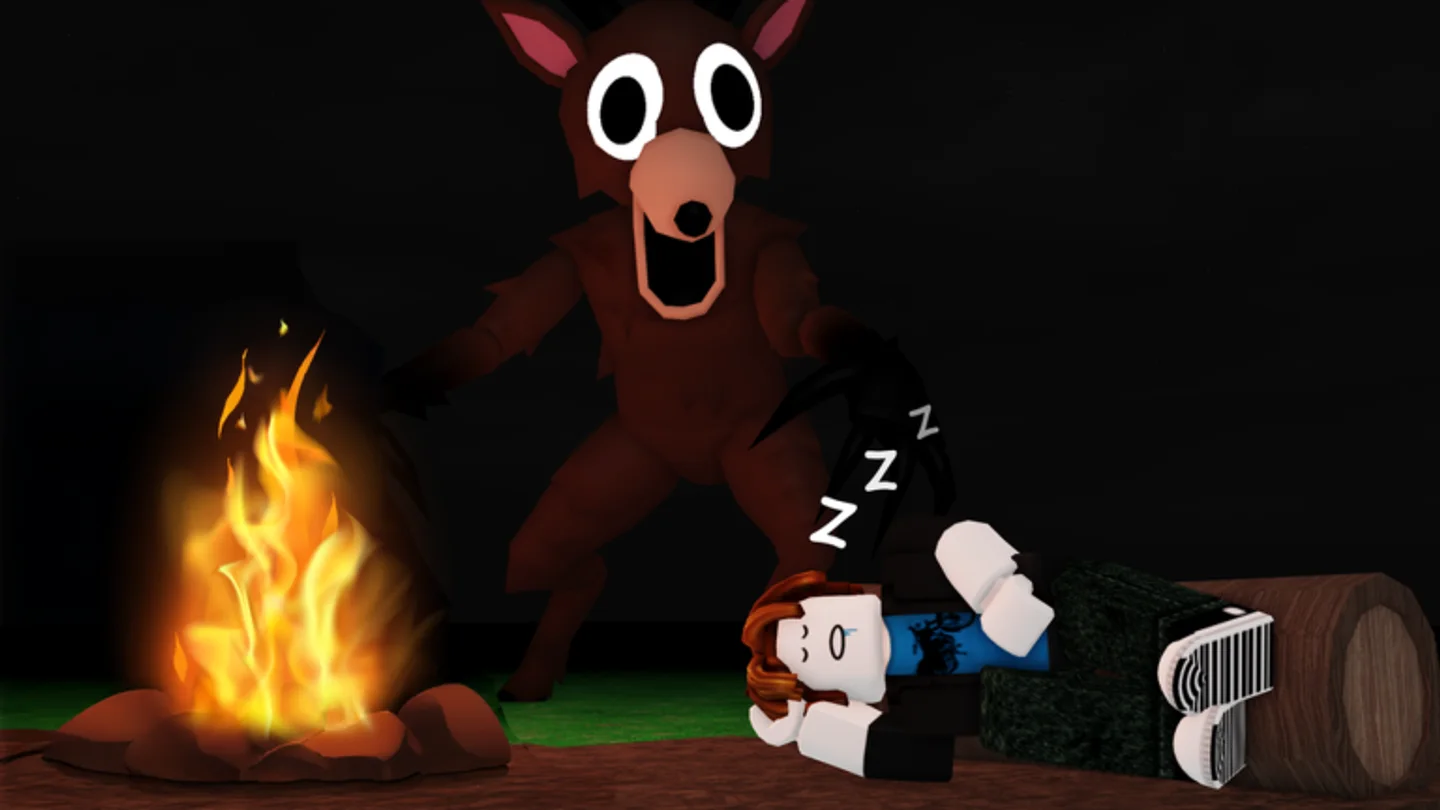
Example of a polished horror game: 99 Nights in the Forest by Grandma's Favourite Games (image from its Roblox page)
On this page12
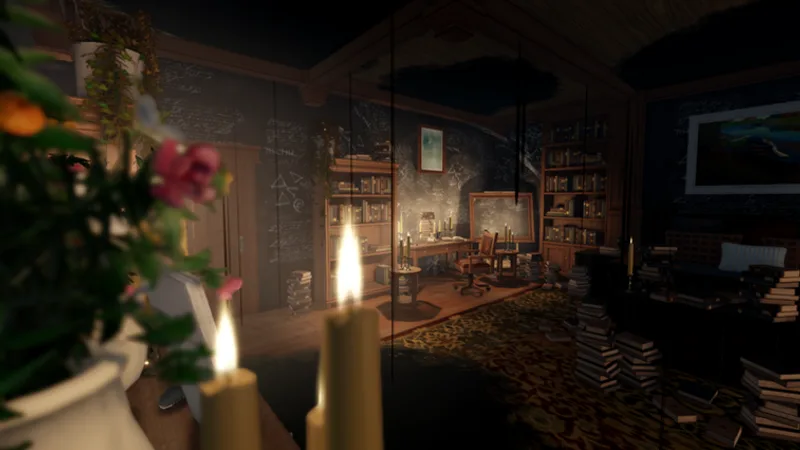
To make a Roblox horror game, start with the mood: set the Lighting service to night with low ambient light and thick Atmosphere, give players a flashlight, and build tight rooms where they cannot see far. Then add one threat, usually a monster driven by a server Script that walks toward the nearest player, and a goal such as finding keys to open an exit door. Sound and pacing do more of the scaring than the monster model.
Roblox itself points to Doors as “a procedural survival horror game” in its design docs. Note that horror is not one of Roblox’s official top genres, so when you publish you will pick something like Survival.
Quick facts
- Core loop
- Explore, find item, avoid threat, escape
- Mood tools
- Lighting, Atmosphere, post-processing, sound
- Interaction
- ProximityPrompt on doors and items
- Threat
- Humanoid monster moved by a server Script
What top horror games do
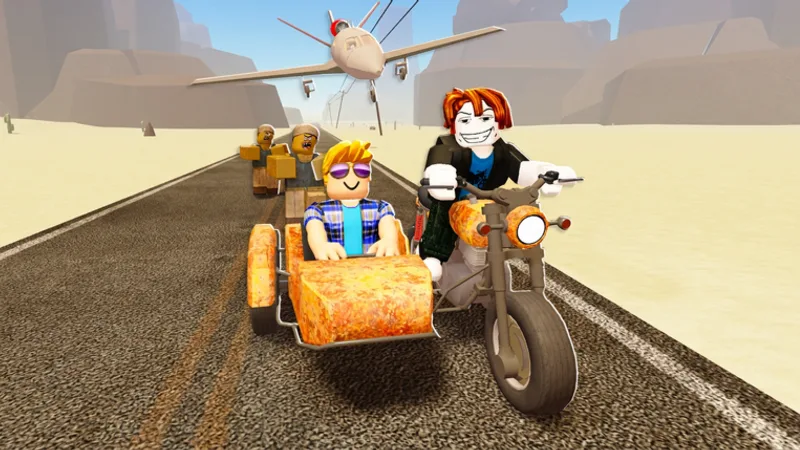
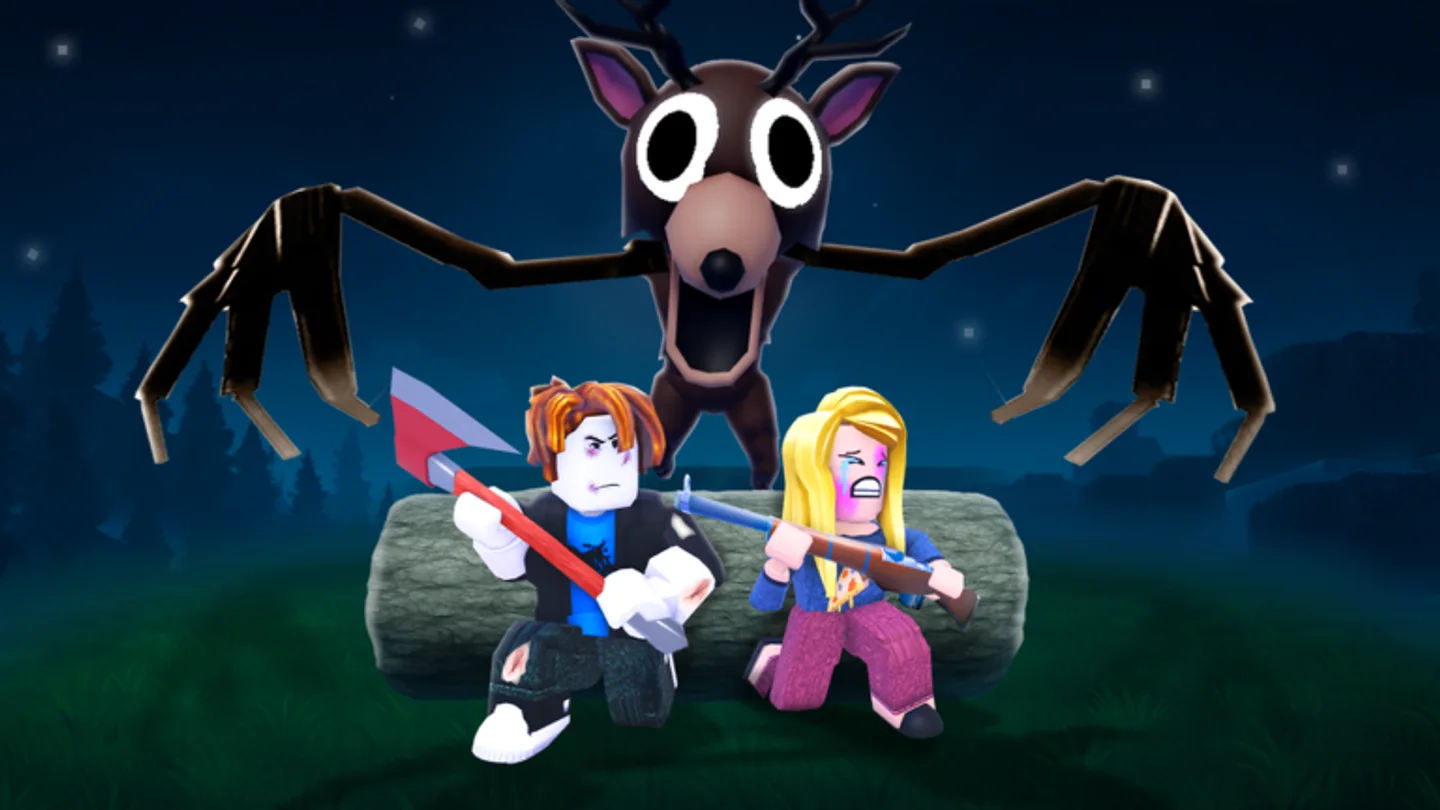
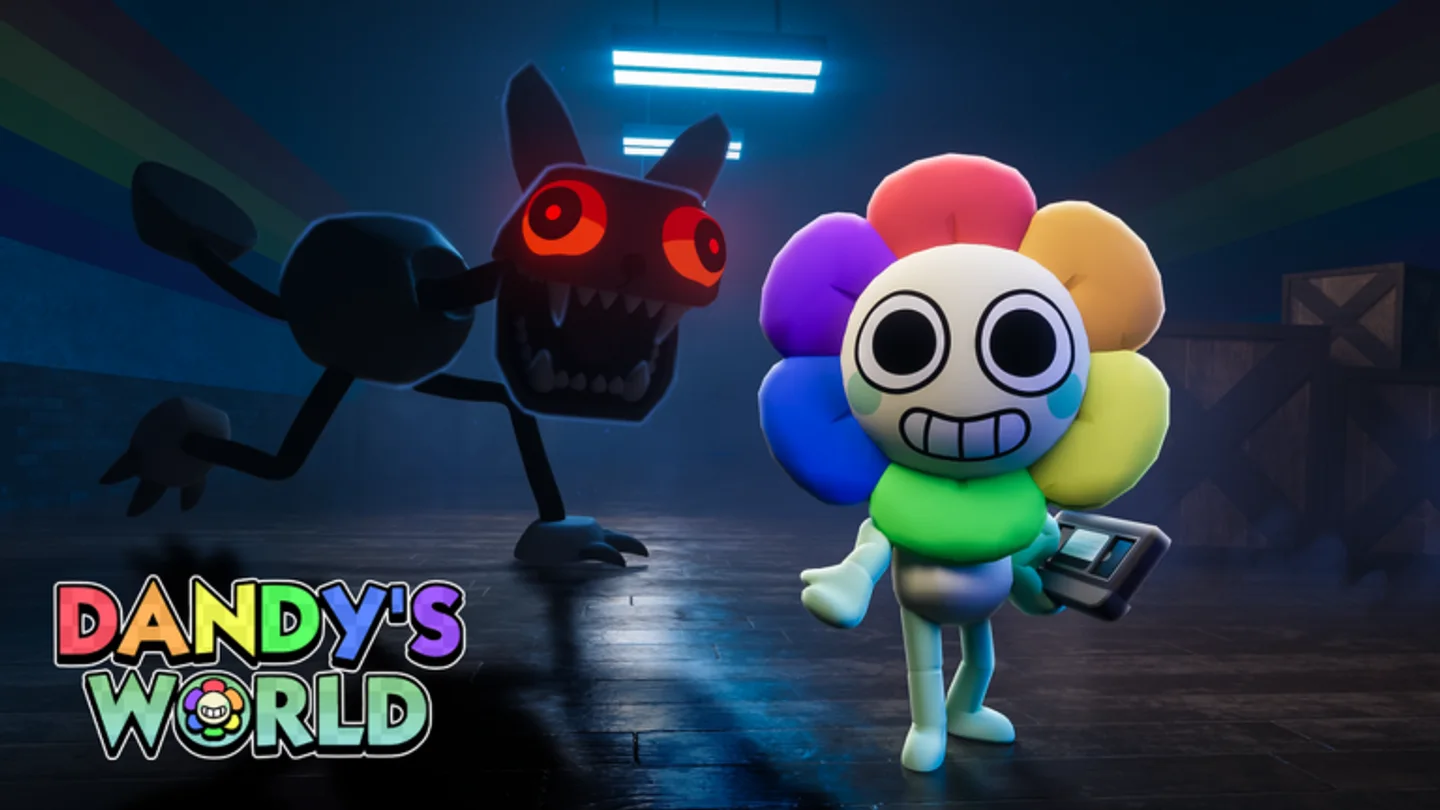
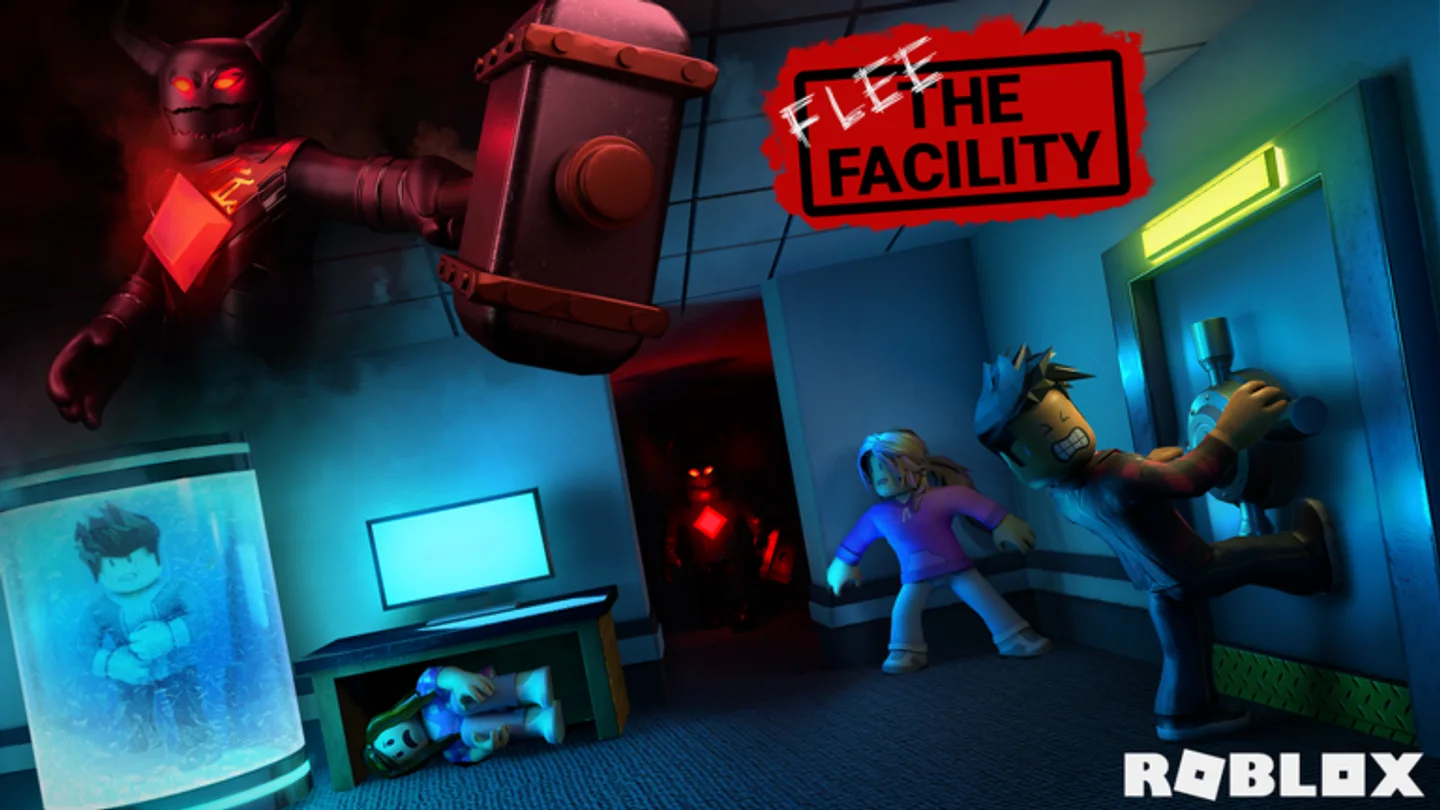
Three horror games from Roblox’s charts in late November 2026 show different takes on the genre. 99 Nights in the Forest by Grandma’s Favourite Games mixes horror with survival: players keep a campfire going, build defenses and try to last through the nights while a creature hunts them in the dark. Dandy’s World by BlushCrunch Studio wraps its scares in a cartoon style, with teams running floors of a building while monsters chase them. Flee the Facility by A.W. Apps is an older round based game where one player is the Beast and the rest hack computers and escape.
None of them depend on gore. They use darkness, sound and a threat you can hear before you see it. Each also gives players a job to do (feed the fire, finish the floor, hack the computers), so the fear sits on top of a clear goal.
The core loop
Horror works on tension and release. The player explores, wants something (a key, a fuse, the exit), senses danger, and either escapes or gets caught. A good first project is a short house with three keys and one monster. That covers every system you need without a huge map.
Step 1: Make it dark
Select Lighting in the Explorer. Lower ClockTime toward midnight, drop Brightness, and set Ambient and OutdoorAmbient to dark colors. Roblox’s lighting page shows what each one does.
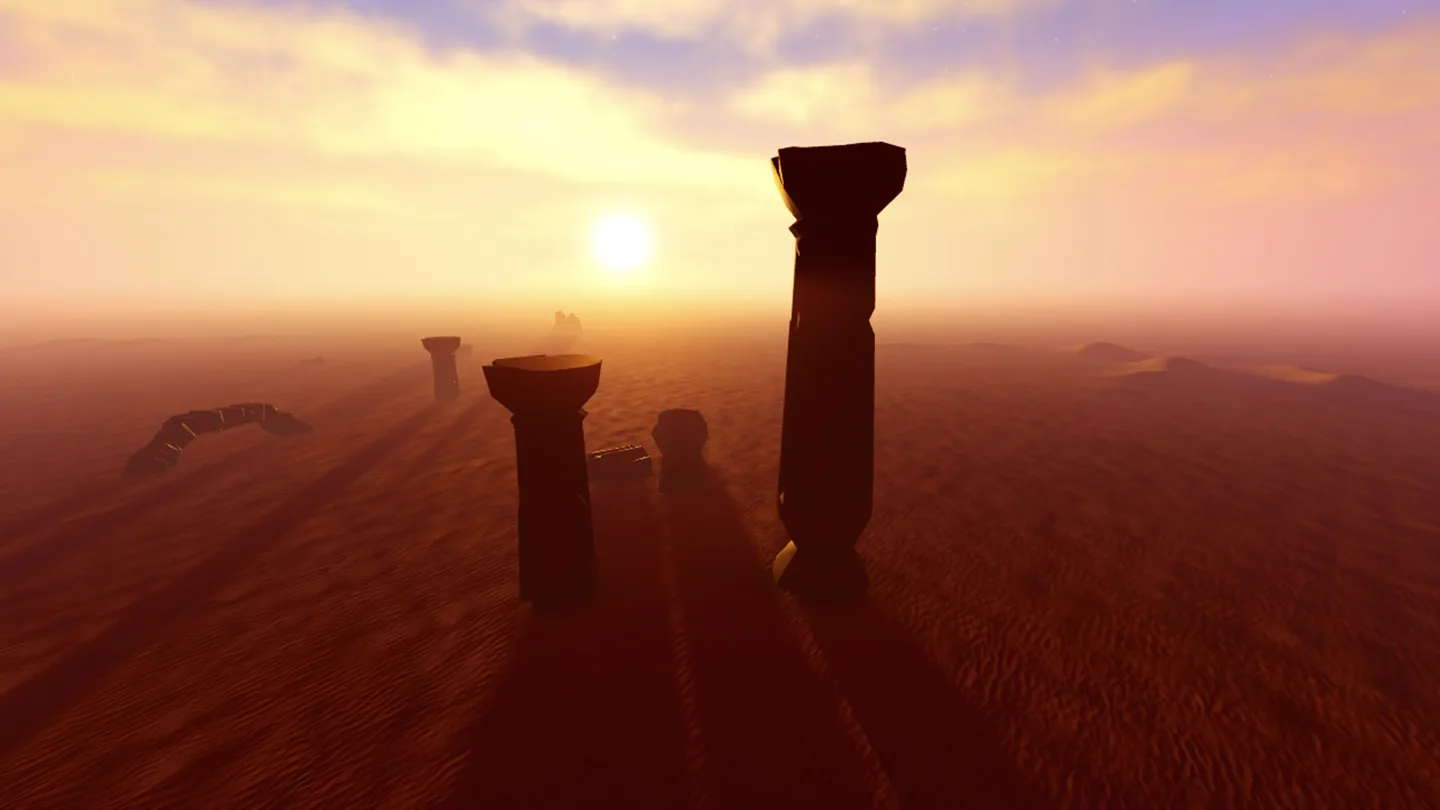
Then insert an Atmosphere object into Lighting. Raise Density so far walls fade into fog, and pick a cold gray Color. You can set the same values from a server Script if you want the mood to change mid-game:
local Lighting = game:GetService("Lighting")

Lighting.ClockTime = 0
Lighting.Brightness = 0.5
Lighting.Ambient = Color3.fromRGB(10, 10, 15)
Lighting.OutdoorAmbient = Color3.fromRGB(15, 15, 20)

local atmosphere = Lighting:FindFirstChildOfClass("Atmosphere") or Instance.new("Atmosphere")
atmosphere.Density = 0.5
atmosphere.Color = Color3.fromRGB(90, 95, 105)
atmosphere.Parent = Lighting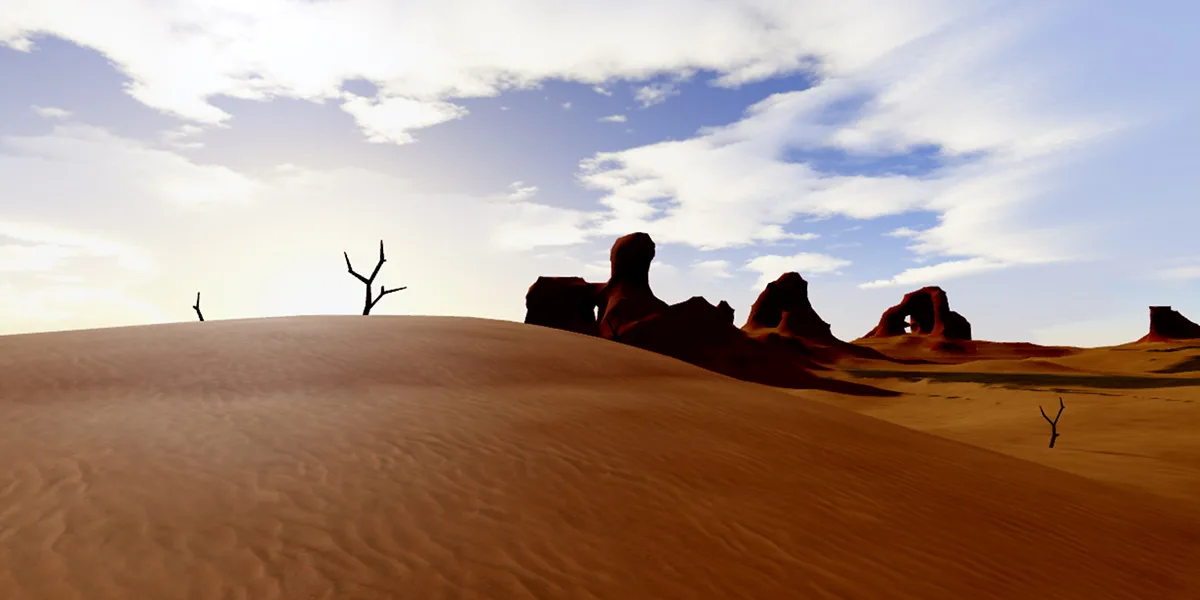
A ColorCorrectionEffect in Lighting can pull out saturation for a washed-out look. Use it lightly, since a fully gray screen is tiring to play.
Step 2: A flashlight
The simplest flashlight is a SpotLight on the player’s head. Put this LocalScript in StarterCharacterScripts so each player gets their own:
local UserInputService = game:GetService("UserInputService")
local character = script.Parent
local head = character:WaitForChild("Head")

local light = Instance.new("SpotLight")
light.Brightness = 3
light.Range = 40
light.Angle = 45
light.Face = Enum.NormalId.Front
light.Parent = head

UserInputService.InputBegan:Connect(function(input, processed)
    if processed then return end
    if input.KeyCode == Enum.KeyCode.F then
        light.Enabled = not light.Enabled
    end
end)
Because this runs on the client, other players will not see your beam. For a shared flashlight, create it from a server Script or use a Tool.
Step 3: Keys and a locked door
Use a ProximityPrompt for anything the player interacts with. It shows a “press E” style prompt when they are close. Put a ProximityPrompt in each key part and in the exit door, then one server Script handles both:
local keys = workspace:WaitForChild("Keys")
local door = workspace:WaitForChild("ExitDoor")
local KEYS_NEEDED = 3
local found = 0

for _, key in keys:GetChildren() do
    local prompt = key:FindFirstChildOfClass("ProximityPrompt")
    if prompt then
        prompt.Triggered:Connect(function(player)
            found += 1
            key:Destroy()
        end)
    end
end

door.ProximityPrompt.Triggered:Connect(function(player)
    if found >= KEYS_NEEDED then
        door.Transparency = 1
        door.CanCollide = false
    end
end)
This counts keys for the whole server, which suits a co-op game. For per-player keys, store the count as an attribute on each player instead.
Step 4: The monster
Make or insert a rig with a Humanoid and anchor nothing in it. A server Script inside the monster can chase the closest player:
local Players = game:GetService("Players")
local monster = script.Parent
local humanoid = monster:WaitForChild("Humanoid")
local root = monster:WaitForChild("HumanoidRootPart")

local function nearestPlayer()
    local closest, closestDist = nil, 80
    for _, player in Players:GetPlayers() do
        local char = player.Character
        local hrp = char and char:FindFirstChild("HumanoidRootPart")
        if hrp then
            local dist = (hrp.Position - root.Position).Magnitude
            if dist < closestDist then
                closest, closestDist = hrp, dist
            end
        end
    end
    return closest
end

while true do
    local target = nearestPlayer()
    if target then
        humanoid:MoveTo(target.Position)
    end
    task.wait(0.3)
end
MoveTo walks in a straight line, so the monster will get stuck on walls. For a real map, replace it with PathfindingService and walk the waypoints. Pair it with the kill-on-touch pattern from the obby guide so a catch ends the run.
Testing the scares
Playtest in a dark room on the screen size your players will use. What looks spooky on a bright monitor can be pitch black on a phone. Use the testing controls on the left of the mezzanine to start a test, walk the full route, and time how long it takes. If the monster catches you before you understand the goal, slow it down or give it a short delay at the start.
Ask a friend to play without any explanation. Watch where they get lost and where they jump. Those two lists tell you where to add a light and where to add a scare.
Sound and pacing
Put a looping ambient Sound in Workspace and short sounds on doors and the monster. Long quiet stretches make the loud moment land. Never scare players every ten seconds; give them a safe room now and then.
Using AI for horror
Assistant can generate a creepy prop or creature with /generate_mesh from a text or image prompt (Roblox’s default cap is 10,000 triangles), and the Material Generator in the Window > 3D menu can make tiling textures like rotten wood or stained tile. Ask Assistant to “convert the monster chase script to use PathfindingService” and compare its answer with the docs. With the Roblox Studio MCP, an outside client can even playtest with character_navigation and screen_capture to check whether a hallway is too dark to read.
ElevenLabs
AudioUseful for creepy narration or monster voice lines you import as audio.
- Free tier
- Paid plans from $6/mo (checked Nov 2026)
Affiliate link: we may earn a commission if you subscribe, at no extra cost to you. How this works.
For trailers and the game thumbnail, image and video tools like Higgsfield (affiliate link) can help. See the Roblox thumbnail maker guide.
Monetizing a horror game
Sell things that help or personalize, never things that remove the fear entirely. A pass (Roblox’s docs now say “passes”) is a one time Robux purchase, which suits a better flashlight, a cosmetic skin or a bigger inventory. Create it on the Creator Dashboard under Monetization > Passes > Create pass and check it with MarketplaceService:UserOwnsGamePassAsync(). A developer product can be bought again and again, which fits a revive after the monster catches you; you grant it in MarketplaceService.ProcessReceipt. Since May 30, 2026, Roblox has turned off selling passes and developer products across games. For cashing out, see Roblox DevEx.
Promoting your horror game
A horror icon works best with one face or one shape in the dark, with enough contrast to read at small sizes. Roblox’s own thumbnail advice is to use dark, stormy scenes for horror. The Roblox game icon and Roblox thumbnail maker guides have the sizes and rules.
Jump scares and reactions are made for Shorts. Record a friend’s first playthrough, then clip the scare and the seconds before it.
Opus Clip
Images and videoFinds the scare moments in a long horror session and cuts them into vertical Shorts.
- Free tier
- Starter from $15/mo (checked Nov 2026)
Affiliate link: we may earn a commission if you subscribe, at no extra cost to you. How this works.
For the Shorts craft itself, read how to make viral Roblox animations.
Roblox Horror Game FAQ
Is horror an official Roblox genre?
Roblox's genre list does not include a Horror genre. Horror games usually sit under Survival or another genre, and horror elements are handled through content descriptors in the maturity questionnaire.
How do I make a Roblox game dark?
Set Lighting.ClockTime to night, lower Brightness and the Ambient colors, and add an Atmosphere with higher Density. The Roblox lighting guide explains each property.
How do I make a monster chase players?
Give the monster a Humanoid, find the nearest player in a server Script, and call Humanoid:MoveTo on that player's position in a loop. For maps with walls, use PathfindingService to route around them.
Can I use AI voices or AI monsters in a Roblox horror game?
You can generate a monster mesh with Assistant and use Roblox's text-to-speech feature. Third-party AI output is your responsibility under Roblox's rules, and text must go through TextChatService.
Do jump scares need a special age rating?
Roblox rates games through its maturity questionnaire. Answer it honestly about frightening content when you publish; the rating it gives decides who can play.
Keep building
Every guide, newest first How to Make a Roblox Simulator: Click, Sell, Upgrade, RepeatBuild a Roblox simulator: a tool that earns points, a sell zone that turns them into coins, an upgrade shop over RemoteEvents, and AI tools that speed it up.Game Types6 min read
 How to Make a Roblox Tycoon: Droppers, Cash and Buy ButtonsMake a Roblox tycoon: a dropper that spawns ore, a collector that pays cash, buy buttons for upgrades, and how Assistant and the Studio MCP speed it up.Game Types6 min read
 How to Make a Roblox RNG Game: Rarity Tables, Rolls and LuckMake a Roblox RNG game: a weighted rarity table, a server roll with Random.new, luck boosts, saved inventories, and the AI tools that speed the build up.Game Types4 min read
 How to Make a Roblox Farming Game: Plots, Seeds and Growth TimersBuild a Roblox farming game: player plots, seeds planted with a ProximityPrompt, growth timers that keep running offline, a sell shop, and saved gardens.Game Types5 min read
 How to Make a Roblox Roleplay Game: Town, Jobs, Houses and CarsMake a Roblox roleplay town: jobs as Teams, claimable houses with a spawn point, drivable cars with a VehicleSeat, and AI tools that help plan and build it.Game Types3 min read
 How to Make a Roblox Battlegrounds Game: Moves, Hitboxes and CooldownsMake a Roblox battlegrounds fighting game: a hitbox with GetPartBoundsInBox, server cooldowns, knockback, a move set per character, and AI tools to speed it up.Game Types3 min read